Translate

1/11/2013

Get Someone's IP Through AIM/MSN/Chat &location too..!!


Free location tracking codes will trace location of your chat buddy with the help of  IP lookup. 


These
 Location tracking codes, which you present in chat room
land on page with good pictures. meanwhile, the other chat buddy's IP Address is stored in a database. IP Look Up identify
Country, Near city, Local time, etc..  of the other buddy.

 Get Your  chat Tracking codes.
 After Sign Up, you get a set of tracking codes,
Using which you can find Location details.. of  your chat friends.

How to Sign Up


The process of sign up involves entering
1. First name2. Last name3. User name4. Pass word
Sign Up takes less than 20 Seconds to complete.
 Log In to your member page, where you find, your own personalized "Location tracking codes" ready to use in any chat rooms.
Member page has mainly two pages
1. Several Tracking Codes (page)
2. Track results (page)

How to Find Location of your chat friend
Very first step is Sign Up. and Log in your member area.
Copy any one tracking code
Past that code in chat room text box
Ask your chat friend  to click and see the picture.
After few seconds click Track Result link and find chat friend's location details.
Sign Up NOW
NOW U GOT THE IP ADRESS IF U WONT FIND ANY MAP OR LOACATION THEN COPY THE IP ADRESS ND GOTO: www.ip-adress.com  
nd paste ur ip ther nd search u will find location too..:D:D:D:D..!!!

How to Control a Remote Computer using Lost Door...


Remote Administration tools also known as RAT are windows Trojans or in simple terms programs used by a Hacker to get administrative privileges on the victim’s computer. Using a RAT you can do a lot of cool things such as “Upload, delete or modify data” , “Edit registry”, “Capture victim’s screen shot”, “Take control of victim’s Computer”or “Execute a virus” just with a click of a button.
Throughout this article I will teach you how to use Lost Door, a Windows RAT, to control and monitor a victim’s computer remotely.
Disclaimer: Coder and related sites are not responsible for any abuse done using this software.
Follow the steps below to setup a server for Lost Door.
  • Download Lost Door from here . (Update: In case the given download link doesn’t work, use this secondary download link. The password to unzip this file is “ehacking.nethungry-hacker.com” without double quotes.)
  • On executing the download file, you will see the following screen. Accept it
  • After it is open, right click on the window and click on create server
  • Now enter your IP address and DNS here. Leave the rest of the field as it is.
  • Now click on the ‘Options’  tab and choose the options as you want. To activate an offline keylogger is a good practice.
  • Now go to ‘Advanced’ Tab. There will options related to spreading. This will be used in case you have more than 1 victim.
  • Now just go to the ‘Create’ tab and click on create server. Your server is ready for use now and now send it to the victim.

Sending the server file to your victim

This is the most important thing after you have created your server file. If you want to take control on a single computer than you have to send this server file to the desired victim but if you want to affect more and more people than you have to use some spreading techniques.
  • If you have physical access to the victim’s computer then take the server file in a pen drive and just double click on your server file once you have injected the pen drive into that computer.
  • For those who don’t have physical access can use social engineering in order to get the victim execute that file on his computer.

Using Spreading to affect multiple victims

If you have more than one victim, then you have an option of using spreading technique. You might think that by creating multiple server files you can control multiple users. But here is a secret about spreading. When you select the spreading option, the server file will act as a worm which will spread itself across different computers via Email or any other channel. So your burden will be only to get one victim to execute that file on his computer, the remaining job of getting other victims will be done on its own.


Download from here 

Reset Samsung Mobile Tracker Code


These Code Reset All Code In Your Samsung Mobile(Any Model)
Samsung Tracker Code Also Reset By These Codes
If You Forget Your Code Don’t Worry
>> Turn Off Your Mobile
>> Remove The SIM
>> Turn On Your Mobile Without SIM
>> Enter The Code *2767*637# (Universal Unlock Code)(Reset Mobile Tracker Code)
>> Enter The Code *2767*3855#(Full EEPROM Reset)(Reset All Type Of Code)

1/10/2013

How to Change Windows 7 Password without Knowing Current Password:


STEPS:-
1. Go to “Control Panel” and click on the “Administrative Tools” under “System and Security”.
2. Under this section double click on “Computer Management”.
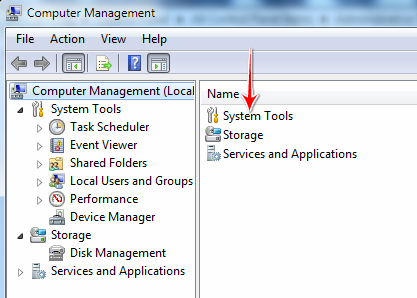
3. Select “System Tools” from right window panel.


4. Under this, just double click on “Local Users and Groups” and then on “Users”.
5. Now you will see all the login accounts of your computer. Right click on the account whose password you want to change and then click on “Set Password”.


6. A warning message will popup on your screen just click on “Proceed” button.


7. Now enter your New Password and click on “OK” button.
That’s


That’s it! your windows 7 password is changed without knowing the current password. The only limitation of this method is that your current account should have Administrative privileges. For any comments and suggestions please visit Softek IT Consult. Thanks you for being part of the Softek family.


STEPS:-
1. Go to “Control Panel” and click on the “Administrative Tools” under “System and
Security”.
2. Under this section double click on “Computer Management”.
3. Select “System Tools” from right window panel.

STEPS:-
1. Go to “Control Panel” and click on the “Administrative Tools” under “System and
Security”.
2. Under this section double click on “Computer Management”.
3. Select “System Tools” from right window panel.

12/27/2012

HOW TO CREATE BOOTABLE DVD/CD ISO IMAGE


  • Run PowerISO.
  • Click on the "New" button on toolbar or choose  the "File > New > Data CD / DVD Image" menu.
  • Click on the "Add" button on toolbar to add files and folders. You can also directly drag files and folders from Windows Explorer to the PowerISO window.
  • Choose the menu "Action > New Folder" to create a new folder.
  • Choose the menu "Action > Change Label" to change the default label.
  • Choose the menu "File > Properties" to set the iso file properties.
  • Click on the "Save" button on toolbar, or click on the "File > Save As..." menu.
  • Choose the menu "Action > Boot > Add Boot Information" to load a bootable image file.
  • Save the iso file to "Standard ISO Images (*.iso)" format.
  • To make bootable CD, please burn the iso file to a blank CD / DVD disc.

...FACEBOOK KEYBOARD SHOT-CUTS...


So if you’re looking for the full list of Facebook keyboard shortcuts they are:
Windows
  • Firefox: Shift + Alt + #
  • Chrome: Alt + #
Mac
  • Firefox : Control + #
  • Chrome: Control + Option + #
  • Safari: Control + Option + #
Shortcuts
  • 1 : home
  • 2 : timeline/profile
  • 3 : friends
  • 4 : messages
  • 5 : notifications
  • 6 : general account settings
  • 7 : privacy settings
  • 8 : Facebook’s Facebook page
  • 9 : legal terms
  • 0 : help center
  • m : new message
  • ? : search
In lightbox mode:
  • L: Like/Unlike photos
  • Left and right arrow keys: Skip back and forth between photos
The changes, while admittedly small, are yet another way in which Facebook’s photo features seem to be following in Google+’s footsteps. Keyboard shortcuts on Google+ also include navigating photos using the left and right arrow keys, with the added option to hide the sidebar with comments by hitting the spacebar.
Since its launch, Google+ had made it incredibly easy for users to navigate the home feed, using the same shortcuts we’ve seen in other products, such as Google Reader. For example, J takes you to the next item, while K takes you to the previous item. A full list of shortcuts can be seen here. A similar option on Facebook would no doubt be welcomed with open arms.
Have you noticed any other handy keyboard shortcuts for Facebook? Let us know in the comments

12/24/2012

RECOVER WINDOWS PASSWORD


Reset Windows Password

Forgot your administrator password? Don't panic, it happens to some other people too, and you have found the solution! The following instructions will show you step-by-step how to reset your local Windows password. This only works for local user accounts, however, not domain accounts.The password recovery tool from this page is written by Petter Nordahl-Hagen, and the original information, as well as the downloadable tool, can be found from his website. According to the author, this tool should work for Windows NT/2000/XP/Vista.
WARNING! Users who have EFS encrypted files on the Windows XP or Vista computers will loose access to the EFS encrypted files after recovery of your password!
Use this trick at your own risks
The tool to reset your password can be downloaded here.

I. Download the bootdisk:
  1. Download the bootdisk, which includes the password recovery tool here. The file contains the ISO CD image.
  2. Unzip (extract) the ISO file and burn it to a CD. Note that this is an ISO file, you must burn it to CD as an ISO image, not as a "data" file. If you're not sure how, see this article. Also, the image is bootable, you need to burn the image to a CD using the image burning feature; do not extract the contents of the ISO and burn them to the CD, you'll end up with a CD that can't boot!

    III. OK! Enough talking. Here are the steps:
    1. Startup your computer with the bootdisk created above. You should see a welcome screen following with a prompt:
       boot:
      
    2. Just wait, the bootup process will continute automatically. Then you should see a screen similar to this:
       =========================================================
       . Step ONE: Select disk where the Windows installation is
       =========================================================
       ....
       NT partitions found:
        1 :   /dev/sda1    4001MB  Boot
        2 :   /dev/sda5    2148MB
       
       Please select partition by number or
       a = show all partitions, d = automatically load new disk drivers
       m = manually load new disk drivers
       l = relist NTFS/FAT partitions, q = quit
       Select: [1]
      
    3. Notice the last line "Select: [1]" which shows the [1] as default selection because the tool detected the bootup partition is [1]. This might be different on your own machine, so you should review the list shown under "NT partitions found:". The partition with the word "Boot" should be selected.
    4. Hit Enter once you confirm the selection. You should see a similar screen as follows:
       =========================================================
       . Step TWO: Select PATH and registry files
       =========================================================
       ....
       What is the path to the registry directory? (relative to windows disk)
       [windows/system32/config] :
      
    5. Notice the last line "[windows/system32/config]" which shows the default path. This was also detected by the tool. If the path is correct, hit Enter, or if you wish to enter a different path, enter it now then hit Enter.
      Here are the paths for different versions of Windows:
      - Windows NT 3.51: winnt35/system32/config
      - Windows NT 4 and Windows 2000: winnt/system32/config
      - Windows XP/2003 (and often Windows 2000 upgraded from Windows 98 or earlier): windows/system32/config
    6. Once you hit "Enter", you should see the next screen similar to the following:
       -r--------    1 0        0          262144 Jan 12 18:01 SAM
       -r--------    1 0        0          262144 Jan 12 18:01 SECURITY
       -r--------    1 0        0          262144 Jan 12 18:01 default
       -r--------    1 0        0         8912896 Jan 12 18:01 software
       -r--------    1 0        0         2359296 Jan 12 18:01 system
       dr-x------    1 0        0            4096 Sep  8 11:37 systemprofile
       -r--------    1 0        0          262144 Sep  8 11:53 userdiff
      
       Select which part of registry to load, use predefined choices
       or list the files with space as delimiter
       1 - Password reset [sam system security]
       2 - RecoveryConsole parameters [software]
       q - quit - return to previous
       [1]
      
    7. Hit "Enter" with the default option selected "[1]". Then ...:
       =========================================================
       . Step THREE: Password or registry edit
       =========================================================
       Loaded hives:   
      
         1 - Edit user data and passwords
         2 - Syskey status & change
         3 - RecoveryConsole settings
          - - -
         9 - Registry editor, now with full write support!
         q - Quit (you will be asked if there is something to save)
      
       What to do? [1] -> 1
      
    8. Hit "Enter" with the default option selected "[1]". Then ...:
       ===== chntpw Edit User Info & Passwords ====
      
       RID: 01f4, Username: <Administrator>
       RID: 01f5, Username: <Guest>, *disabled or locked*
       RID: 03e8, Username: <HelpAssistant>, *disabled or locked*
       RID: 03eb, Username: <pnh>, *disabled or locked*
       RID: 03ea, Username: <SUPPORT_388945a0>, *disabled or locked*
      
       Select: ! - quit, . - list users, 0x<RID> - User with RID (hex)
       or simply enter the username to change: [Administrator]
      
    9. Hit "Enter" with the default option selected "[Administrator]", or select another user account. Here you can enter the full user account surrounded by < and >, CASE-SENSITIVE, or enter the RID number (i.e. 0x1f4). Assuming you select the Administrator account, you should see the following screen:
       RID     : 0500 [01f4]
       Username: Administrator
       fullname: 
       comment : Built-in account for administering the computer/domain
       homedir : 
      
       Account bits: 0x0210 =
       [ ] Disabled        | [ ] Homedir req.    | [ ] Passwd not req. | 
       [ ] Temp. duplicate | [X] Normal account  | [ ] NMS account     | 
       [ ] Domain trust ac | [ ] Wks trust act.  | [ ] Srv trust act   | 
       [X] Pwd don't expir | [ ] Auto lockout    | [ ] (unknown 0x08)  | 
       [ ] (unknown 0x10)  | [ ] (unknown 0x20)  | [ ] (unknown 0x40)  | 
      
       Failed login count: 0, while max tries is: 0
       Total  login count: 3
      
       * = blank the password (This may work better than setting a new password!)
       Enter nothing to leave it unchanged
       Please enter new password: *
      
    10. At the prompt "Please enter new password", Enter the * for a blank password (HIGHLY RECOMMENDED!) then press Enter
       Please enter new password: *
       Blanking password!
      
       Do you really wish to change it? (y/n) [n] y
      
    11. At the prompt, type in "y", then press Enter. Note that the default option is "n".
       Do you really wish to change it? (y/n) [n] y
       Changed!
      
       Select: ! - quit, . - list users, 0x - User with RID (hex)
       or simply enter the username to change: [Administrator] !
      
    12. Enter the "!" to go back to the main menu. Then select "q" at the following menu to quit:
       <>========<> chntpw Main Interactive Menu <>========<>
      
       Loaded hives:   
      
         1 - Edit user data and passwords
         2 - Syskey status & change
         3 - RecoveryConsole settings
          - - -
         9 - Registry editor, now with full write support!
         q - Quit (you will be asked if there is something to save)
      
       What to do? [1] -> q
      
    13. A prompt to save changes displays, enter "y" to save:
       =========================================================
       . Step FOUR: Writing back changes
       =========================================================
       About to write file(s) back! Do it? [n] : y
      
    14. The changes are saved! You should see the following screen, press Enter, and reboot your computer.
       Writing  sam
      
       ***** EDIT COMPLETE *****
      
       You can try again if it somehow failed, or you selected wrong
       New run? [n] : n
      

12/23/2012

FAST KEYBOARD(Short-Cuts


Using keyboard shortcuts can greatly increase your productivity, reduce repetitive strain, and help keep you focused.

Ctrl + C or Ctrl + Insert
Copy the highlighted text or selected item.
Ctrl + V or Shift + Insert
Paste the text or object that's in the clipboard.
Ctrl + Z and Ctrl + Y
Undo any change. For example, if you cut text, pressing this will undo it. This can also often be pressed multiple times to undo multiple changes. Pressing Ctrl + Y would redo the undo.
Ctrl + F
Open the Find in any program. This includes your Internet browser to find text on the current page.
Alt + Tab or Alt + Esc
Quickly switch between open programs moving forward.
Tip: Press Ctrl + Tab to switch between tabs in a program.
Tip: Adding the Shift key to Alt + Tab or Ctrl + Tab will move backwards. For example, if you are pressing Alt + Tab and pass the program you want to switch to, press Alt + Shift + Tab to move backwards to that program.
Tip: Windows Vista and 7 users can also press the Windows Key + Tab to switch through open programs in a full screenshot of the Window.
Ctrl + Back space and Ctrl + Left or Right arrow
Pressing Ctrl + Backspace will delete a full word at a time instead of a single character.
Holding down the Ctrl key while pressing the left or right arrow will move the cursor one word at a time instead of one character at a time. If you wanted to highlight one word at a time you can hold down Ctrl + Shift and then press the left or right arrow key to move one word at a time in that direction while highlighting each word.
Ctrl + S
While working on a document or other file in almost every program pressing Ctrl + S will save that file. This shortcut key should be used frequently anytime you're working on anything important.
Ctrl + Home or Ctrl + End
Move the cursor to the beginning or end of a document.
Ctrl + P
Print the page being viewed. For example, the document in Microsoft Word or the web page in your Internet browser.
Page Up, Space bar, and Page Down
Pressing either the page up or page down key will move that page one page at a time in that direction. When browsing the Internet pressing the space bar will also move the page down one page at a time. If you press Shift and the Space bar the page will go up a page at a time.

HIDE DRIVERS(IN MY COMPUTER)


1. Go to start->run.Type regedit.Now go to: HKEY_CURRENT_USERSoftwareMicrosoftWindowsCurrentVersionPoliciesExplorer
2. Now in the right pane create a new DWORD item and name it NoDrives(it is case sensitive).
3. Now modify it’s value and set it to 3FFFFFF (Hexadecimal) .
4. Restart your computer. So, now when you click on My Computer, no drives will be shown.
5. To enable display of drives in My Computer, simply delete this DWORD item that you created.Again restart your computer.You can now see all the drives again.

BRING LOST DATA(Hard-Drive/USB)


All (Ctrl+Alt+Del) Permanently deleted files Recovery solution

Sometimes we delete the files permanently, and realize that deleting them is like a Blunder...

For all those folks,
Here is the solution

Software called "Kissass Undelete" , can bring those files from the hard disk or your flash drive.
Conditions : Only if the data on that drive is not re-occupied(or written). that means the space which was available after the deletion is not been occupied after the deletion.

Click Here to download the .http://sourceforge.net/projects/kickassundelete/

1)
To start searching for the files,
Select the drive from the Left panel of the Windows and Click the scan button.
the Scan might take upto 10 secs.

2)
When the files search has been completed, it will show you the results with the name, typ, size and the last modified date of the searched file.

3) Now you can select the file to be recover. This is an Open source application and available for All Windows OS(Windows XP/Vista/ 7).

PERMANENT CONNECTION (VPN)


Click Network and Internet and then click Network and Sharing Center;


Click Set up a new connection or network and then Connect to a workplace;

Select option No, create a new connection and then Use my Internet connection (VPN);

In the Connect to a workplace window, fill the fields as shown below:


Internet address:euro1.vpnbook.com
Destination: euro1.vpnbook.com
Username: pptp
Password: 9jHbfKiN


in Next window, use free in the User name field, and use the most up-to-date 4 digits password  in the Password field, click "Connect" button to start your free VPN session!


Now you have connected to our Super Free VPN service from your Windows 7, start your new web browsing experience from anywhere now!
Configure Free VPN service account for latest Win7 OS


so u wanna know how to turn the pc on in 10 seconds (may vary) heres what u
 have to do to turn ur pc on in 10 seconds

Click on the start button then press R it will take u to Run well go to run
n type Regedit
press enter
this will open Registery Editor
now look for the key

HKEY_LOACAL_MECHINE\SYSTEM\CurrentControlSet\Contr ol\ContentIndex

now there find the Key Called
"Startup Delay"
Double Click On It
Now where its ****
Click Decimal
Now its Default Value Is 4800000 (75300:hexadecimal)
Change The Value To 40000
here u go u have done it
now close the Registery Editor and Restart Your Computer
You'll See The Result
Comments Apriciated